
Step-by-step instructions for the client's Microsoft 365 administrator or IT support provider to configure, and later reconnect, WP Mail SMTP so WordPress can send email through the client's authorized Microsoft 365 mailbox.
Technical Connection Guide
Connect a WordPress Website to Microsoft 365 Email
WP Mail SMTP configuration instructions for the client's Microsoft 365 administrator or IT support provider.
Recommended method
Use One-Click Setup unless your organization requires a separately registered Microsoft Entra/Azure application. One-Click Setup is faster and avoids creating and maintaining an application ID and client secret.
Purpose and scope
The website uses WP Mail SMTP Pro to send WordPress form notifications, password resets, order messages, and other system emails through the client's authorized Microsoft 365 mailbox. Microsoft 365 administrator access is required to approve the connection; ProFusion normally does not have access to the client's Microsoft 365 tenant.
Before the IT provider begins
Security notice
Do not email Microsoft passwords, MFA codes, or client-secret values to ProFusion. Enter sensitive values directly into Microsoft and WordPress. Use a secure password-sharing service if temporary WordPress credentials must be exchanged.
Choose a connection method
Method A — One-Click Setup (recommended)
1. Open WordPress administration
Use the temporary administrator login URL and credentials supplied by ProFusion.
2. Open WP Mail SMTP
Go to WP Mail SMTP → Settings → General.
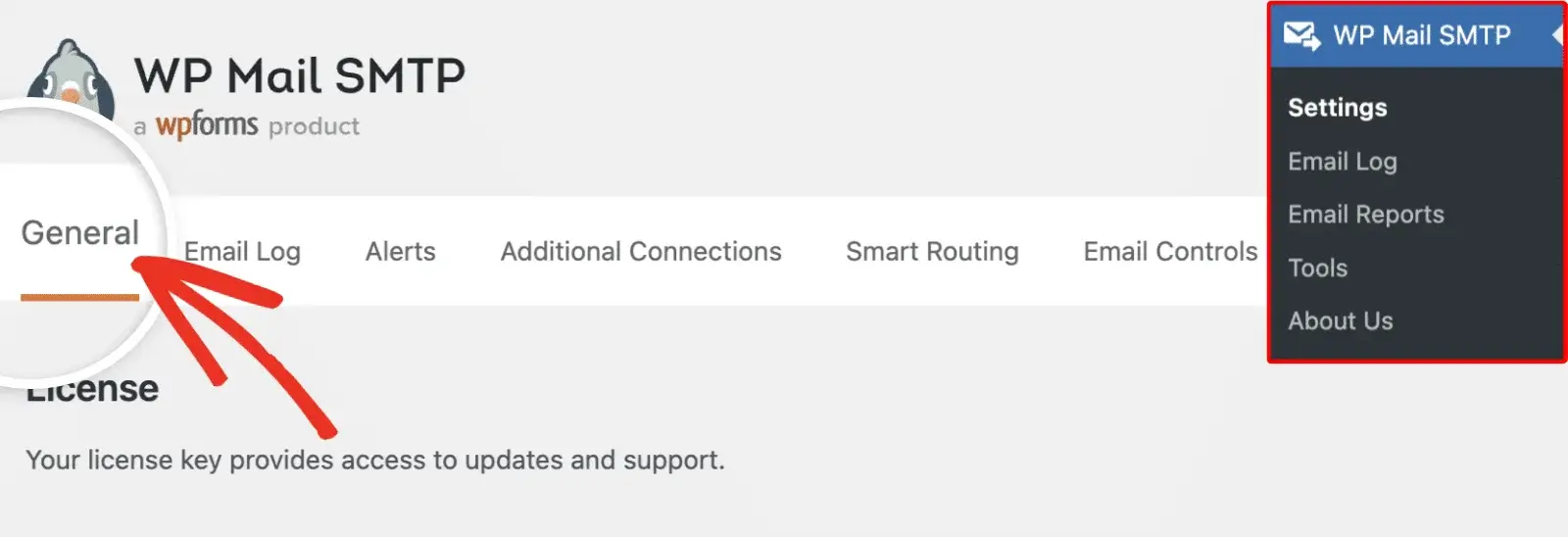
3. Confirm the sender
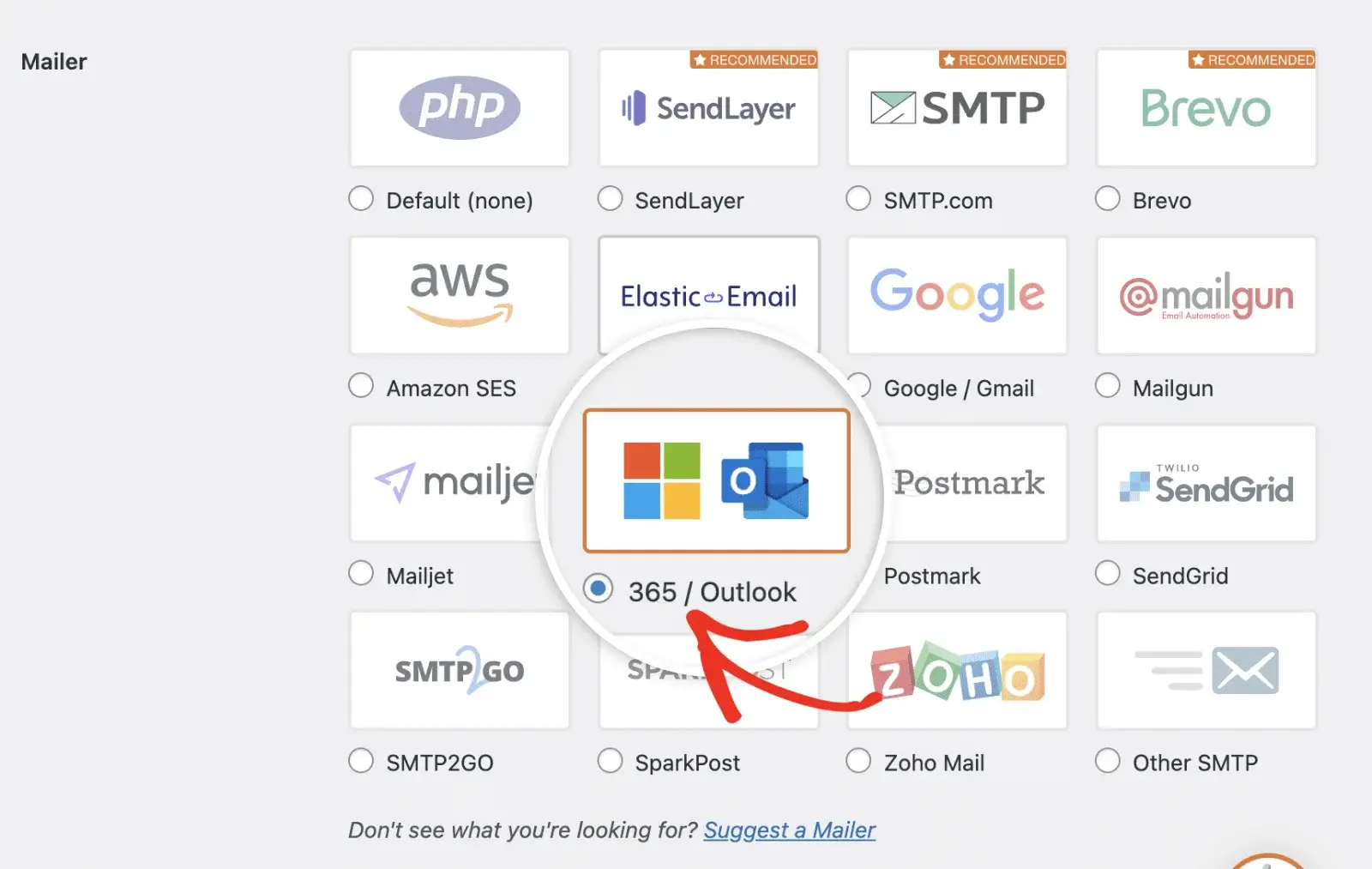
Verify that From Email contains the Microsoft 365 mailbox that will authorize the connection. Under Mailer, select 365 / Outlook.
4. Enable One-Click Setup
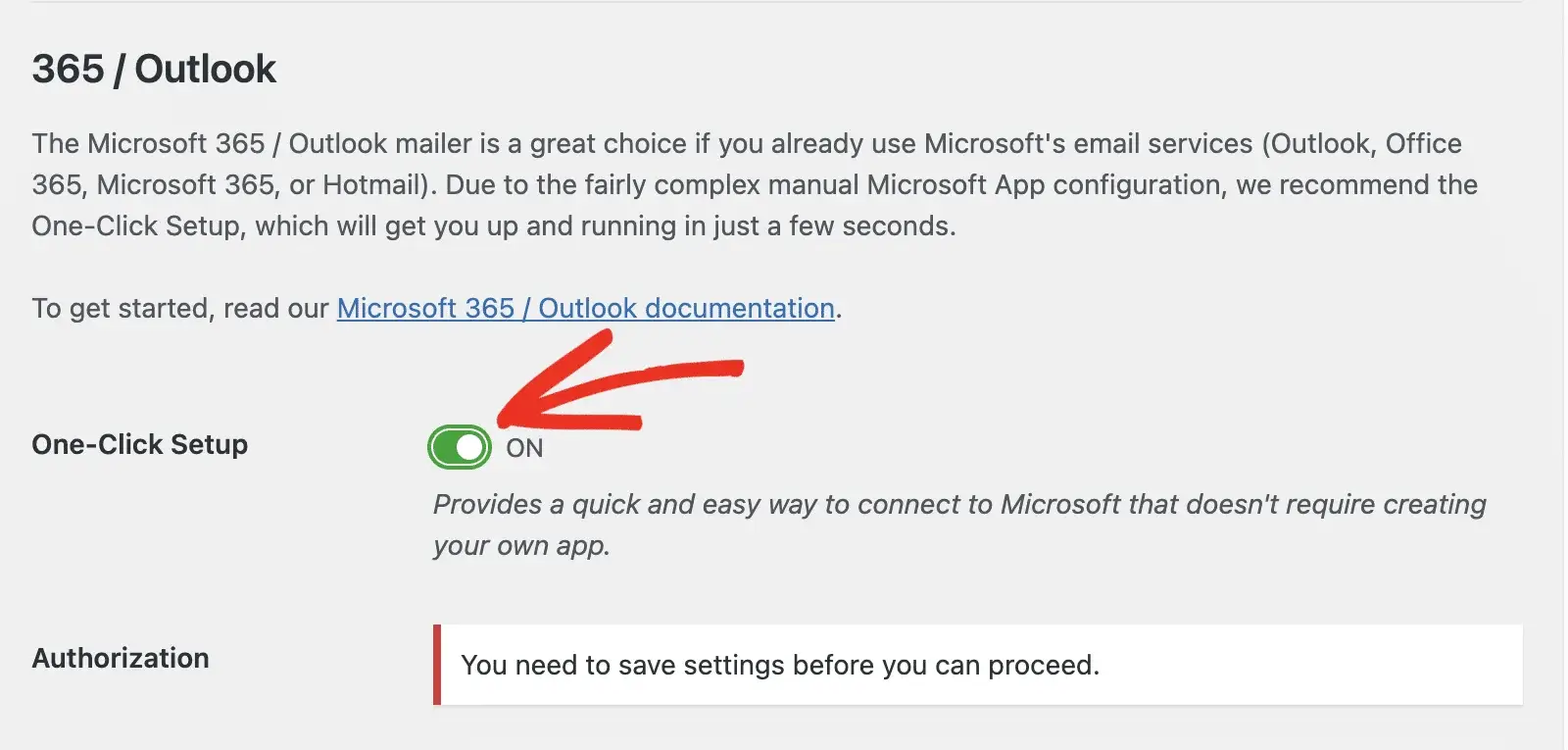
Turn One-Click Setup ON, scroll to the bottom of the page, and select Save Settings.
5. Authorize Microsoft 365
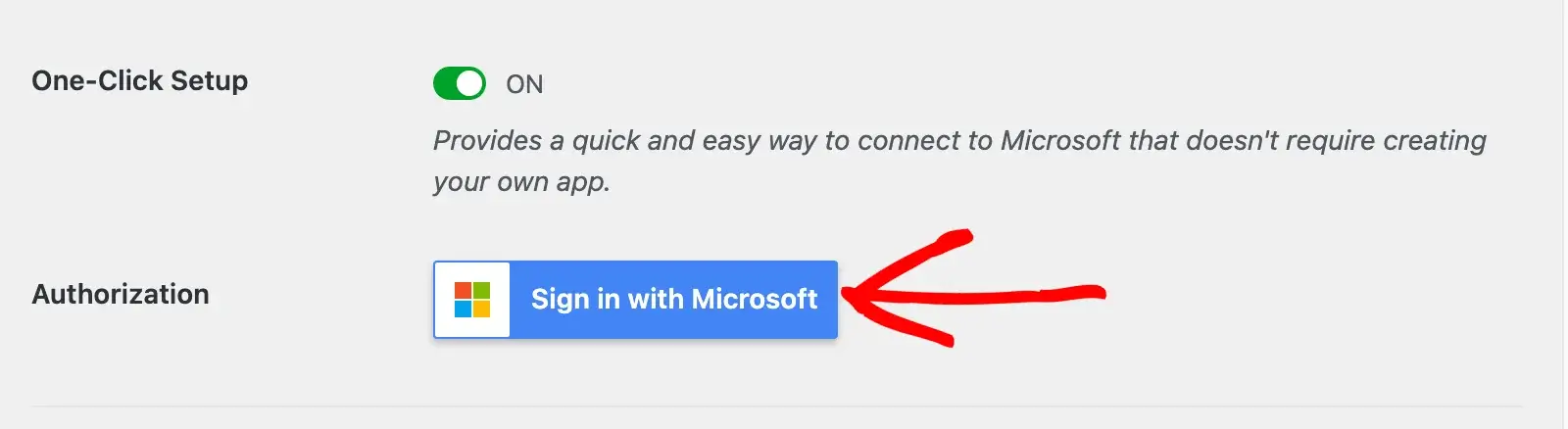
In the Authorization section, select Sign in with Microsoft. Sign in as the exact mailbox entered in From Email and complete MFA if requested.
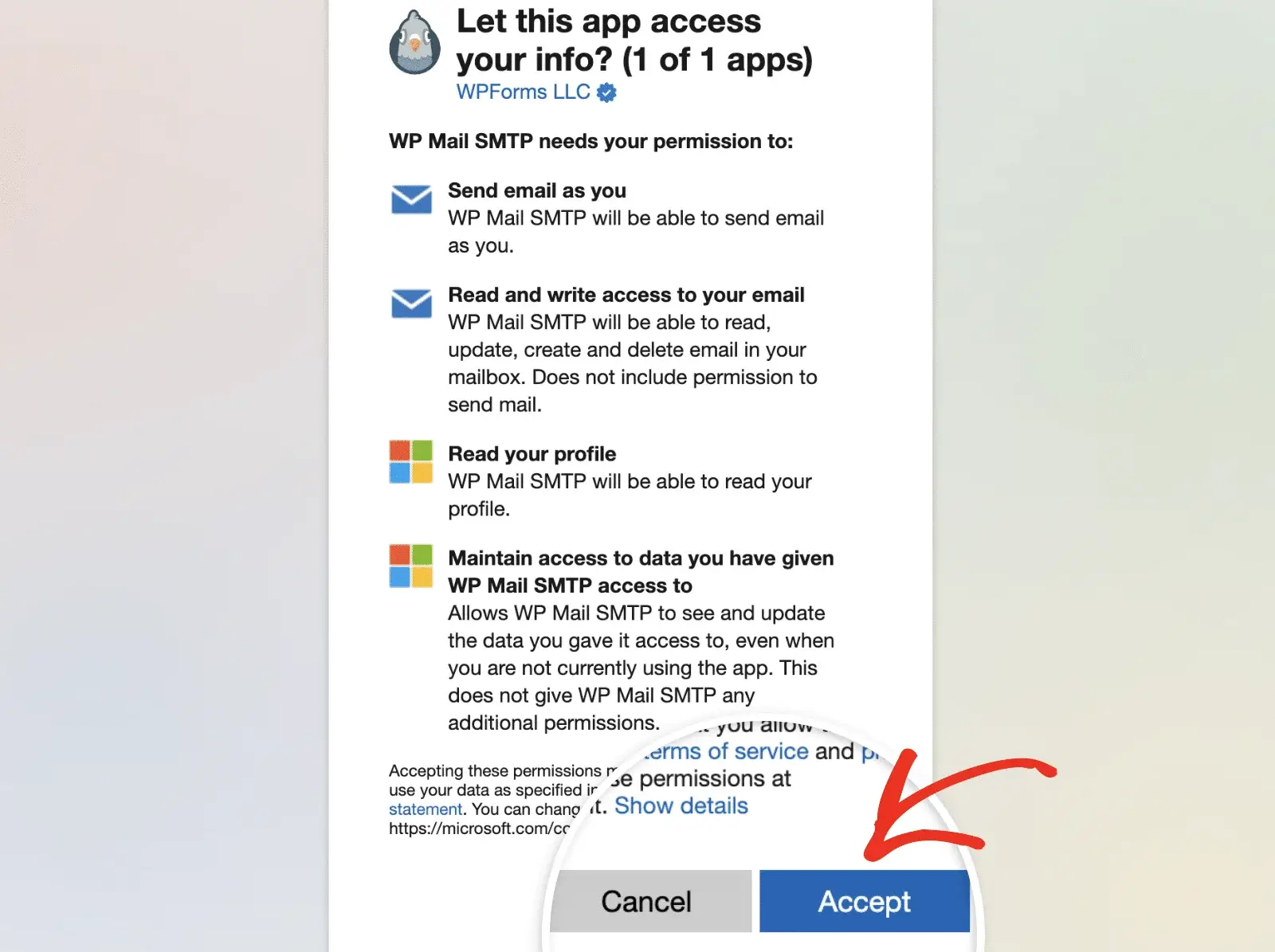
6. Approve access
Review Microsoft's permissions prompt and select Accept. If admin consent is required, complete the approval with an authorized tenant administrator.
7. Confirm success
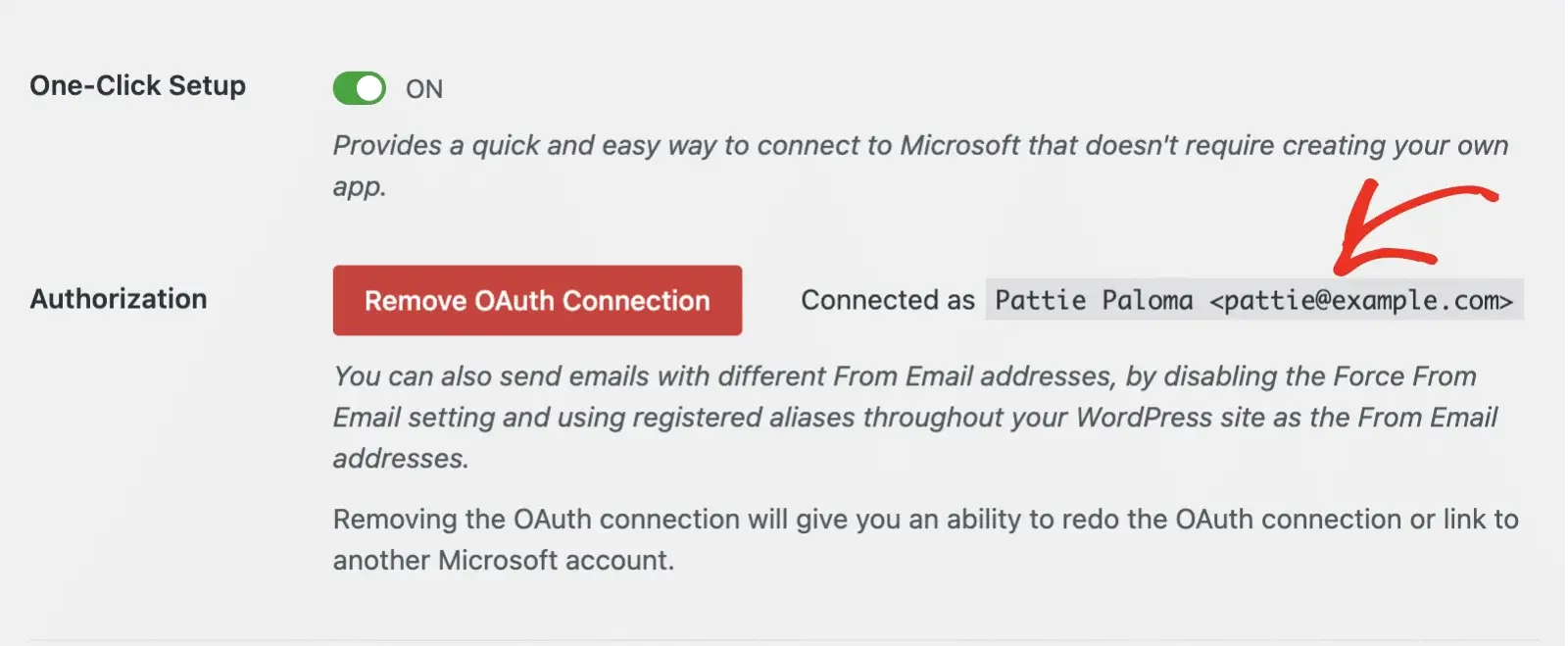
Microsoft should return you to WP Mail SMTP. Confirm that the page reports a successful connection and displays the authorized email address.

8. Notify ProFusion immediately
Send the completion notice shown on page 4. Do not change the WordPress login configuration yourself.
Important
Signing in with a mailbox other than the From Email address can cause an "Invalid state" or SendAsDenied error. If the website must send from a shared mailbox, confirm that the authorizing user has the required Microsoft Send As permissions before testing.
For more information please see: https://wpmailsmtp.com/docs/microsoft-365-outlook-com-one-click-setup/
Method B — Manual Application ID
Use this route only when the organization requires a custom Microsoft application or One-Click Setup cannot be approved. Keep the WordPress and Microsoft Entra/Azure pages open in separate browser tabs.
1. Open WP Mail SMTP
In WordPress, go to WP Mail SMTP → Settings → General, select 365 / Outlook, and leave One-Click Setup OFF.
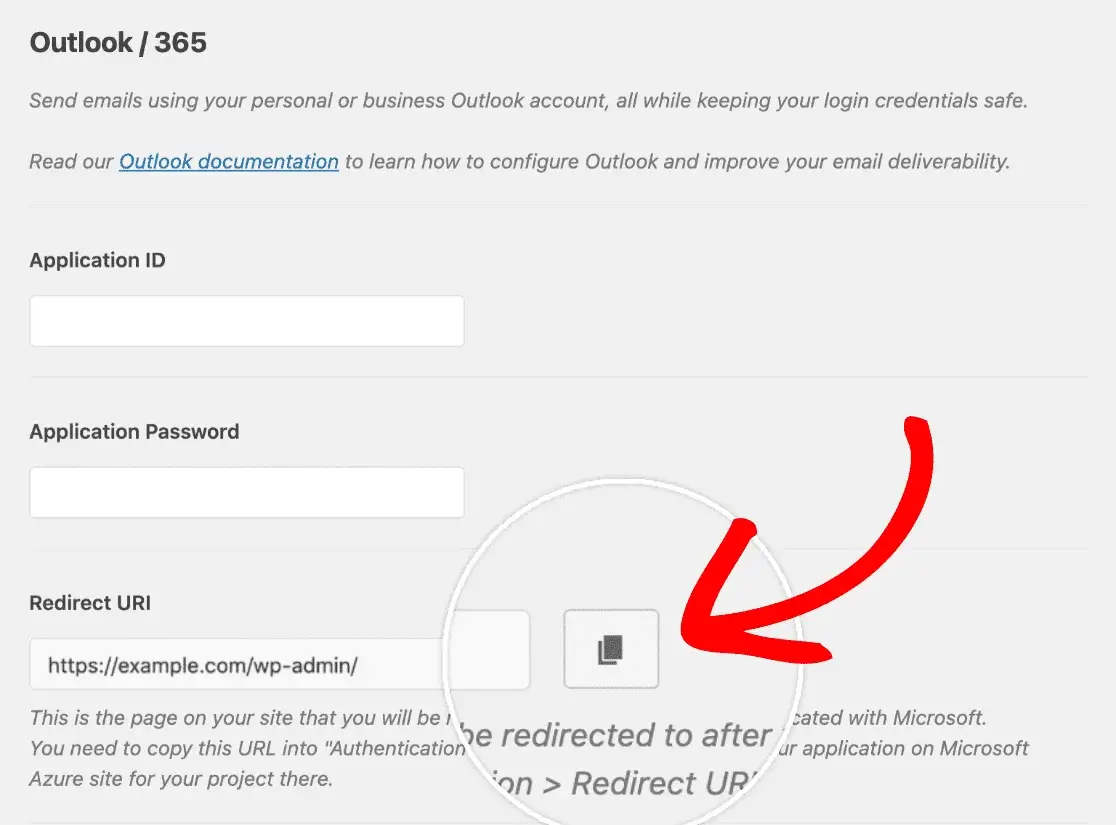
2. Copy the Redirect URL
In the 365 / Outlook section, copy the complete Redirect URL exactly as displayed. Do not substitute the website homepage or login URL.
3. Register an application
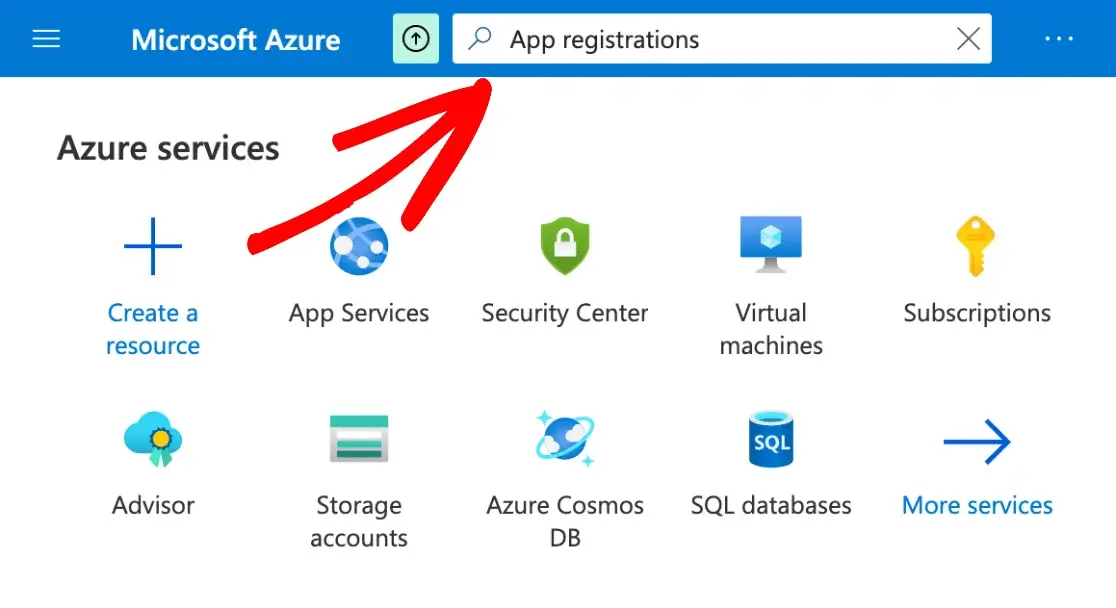
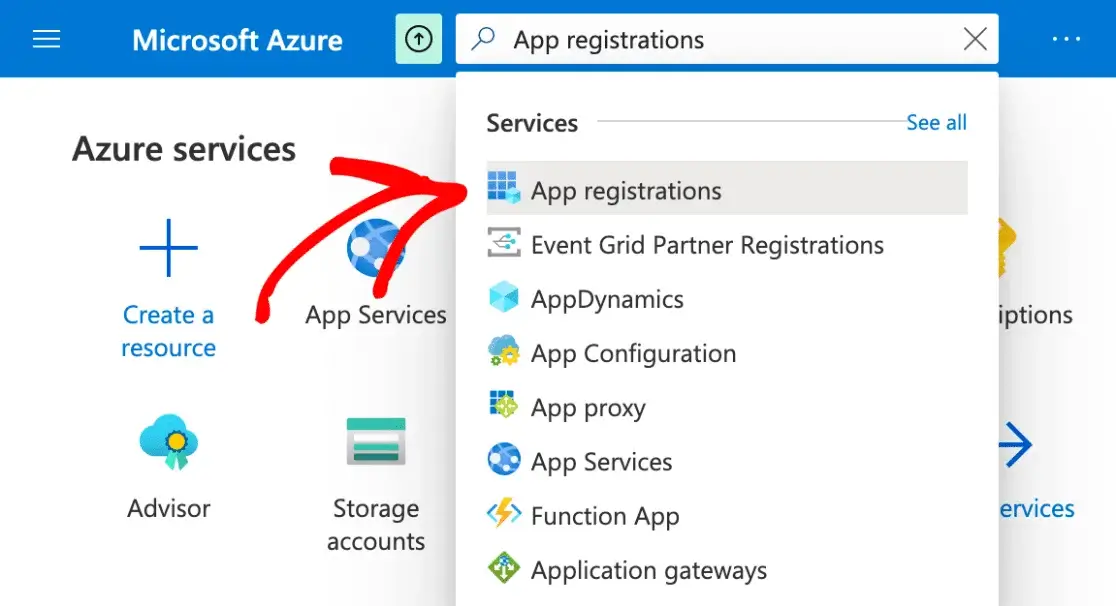
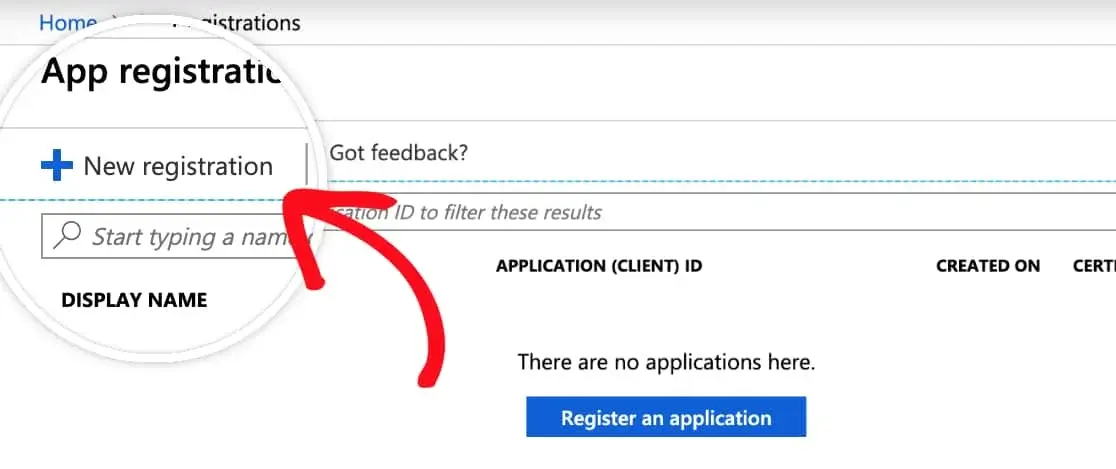
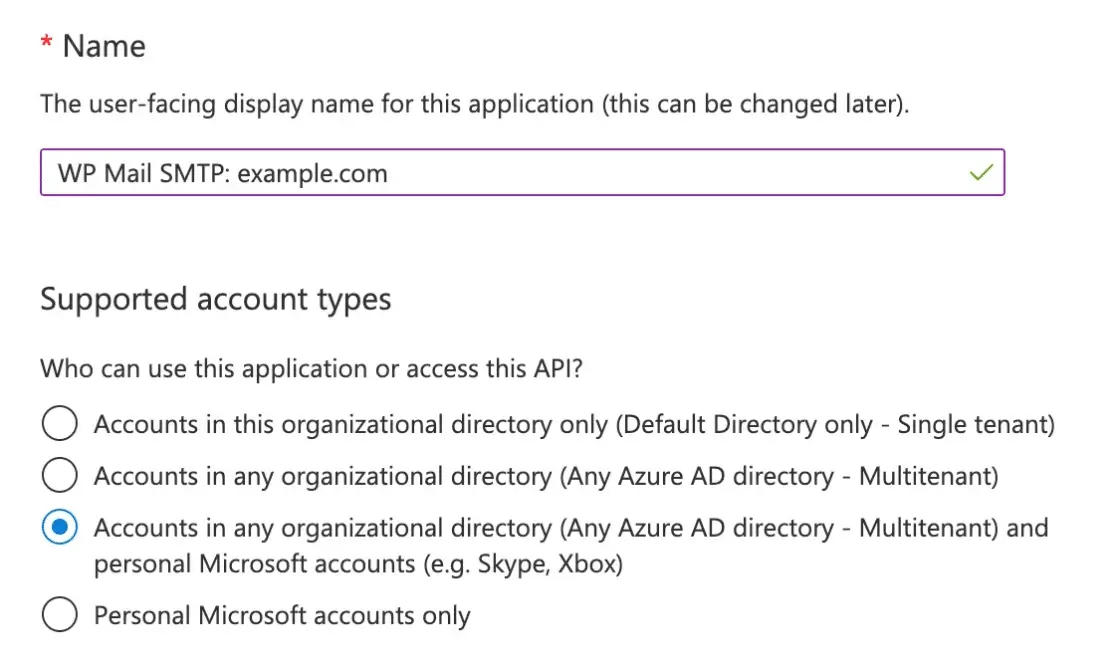
In the Microsoft Entra admin center or Azure portal, open App registrations → New registration. Use a recognizable name such as "WP Mail SMTP: example.com."
4. Select the account type
Select Accounts in any organizational directory and personal Microsoft accounts when available. If your tenant only offers the multitenant organizational-directory option, use the option permitted by your Microsoft policy.
5. Add the redirect
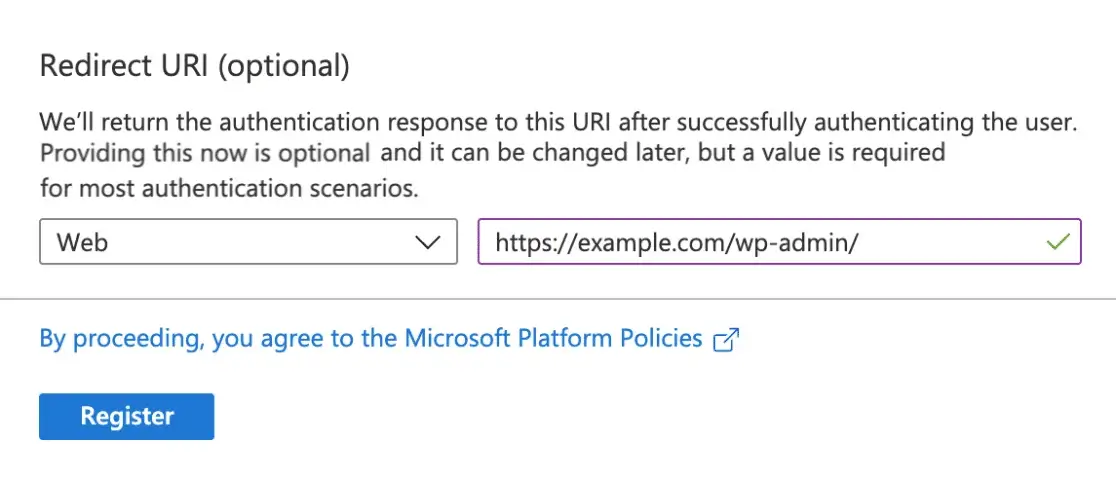
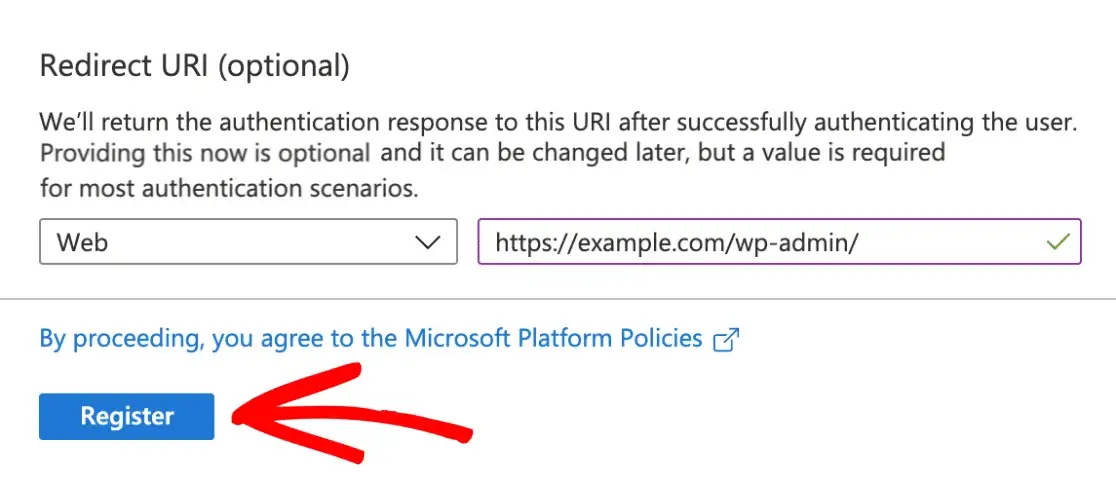
Set Redirect URL platform to Web, paste the Redirect URL copied from WP Mail SMTP, and register the application.
6. Enter the Application ID
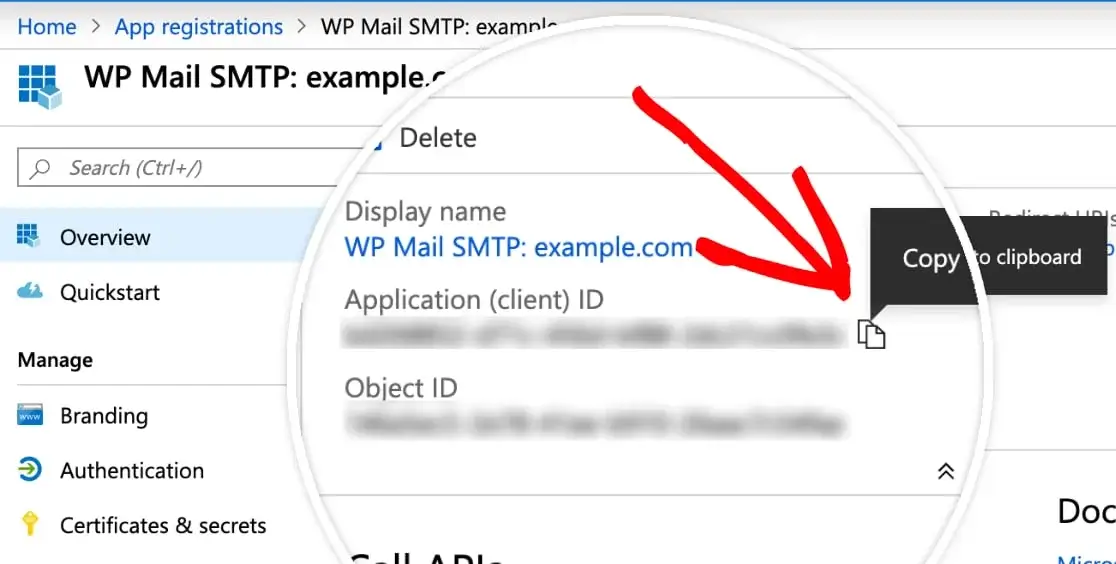
From the application Overview page, copy the Application (client) ID. Paste it into WP Mail SMTP's Application ID field.

For more information please see: https://wpmailsmtp.com/docs/how-to-set-up-the-outlook-mailer-in-wp-mail-smtp/
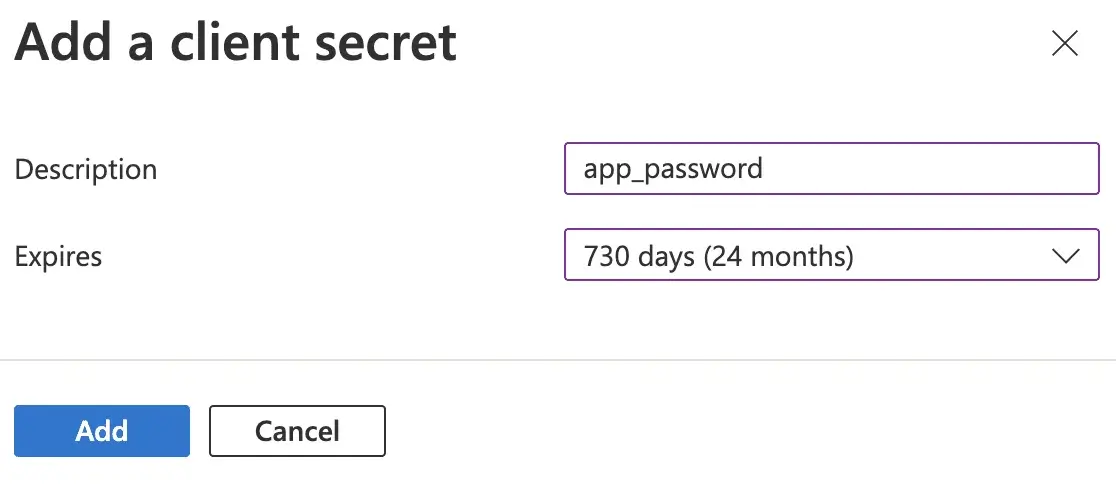
7. Create an application password
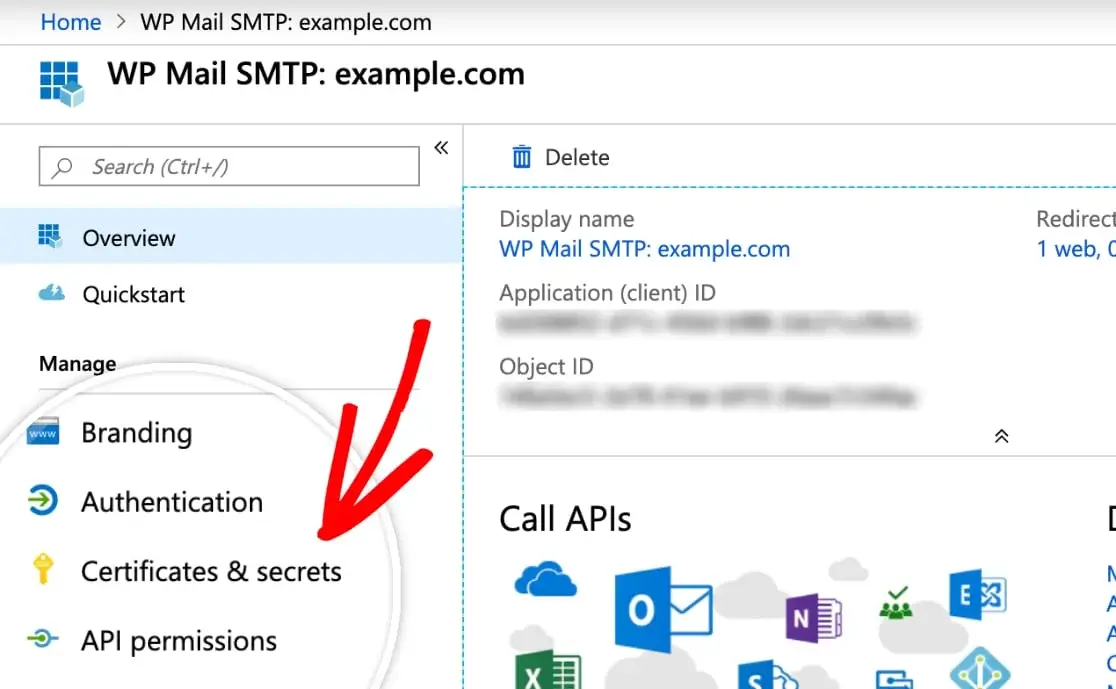
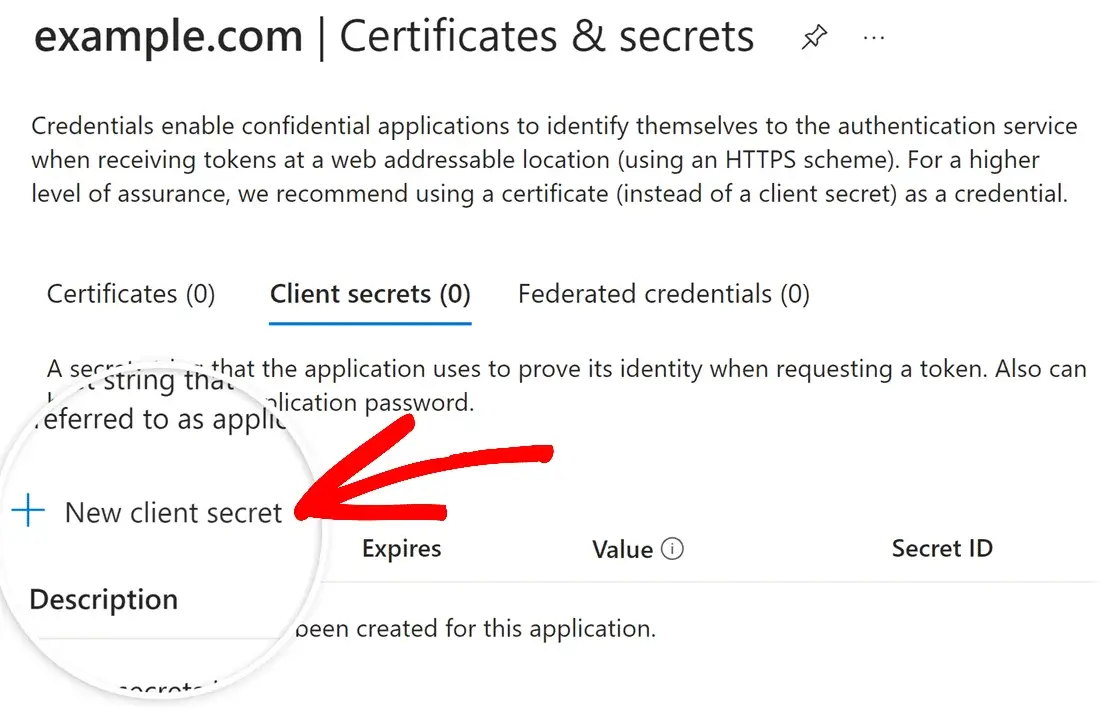
Within the registered app, open Certificates & secrets → New client secret. Choose an expiration allowed by your organization. Microsoft's current WP Mail SMTP guide illustrates 24 months.
8. Copy the secret value immediately
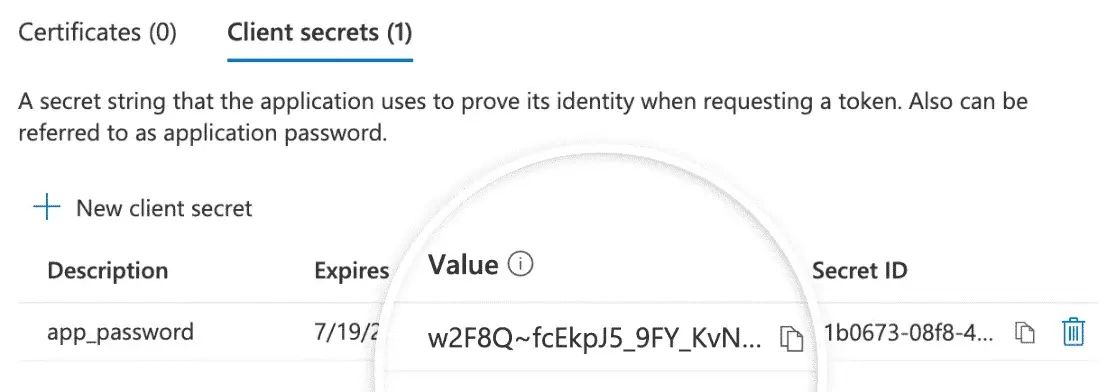
Copy the value shown in the Value column—not the Secret ID. Microsoft will not display the value again after you leave the page. Paste it into WP Mail SMTP's Application Password field.

9. Save and authorize
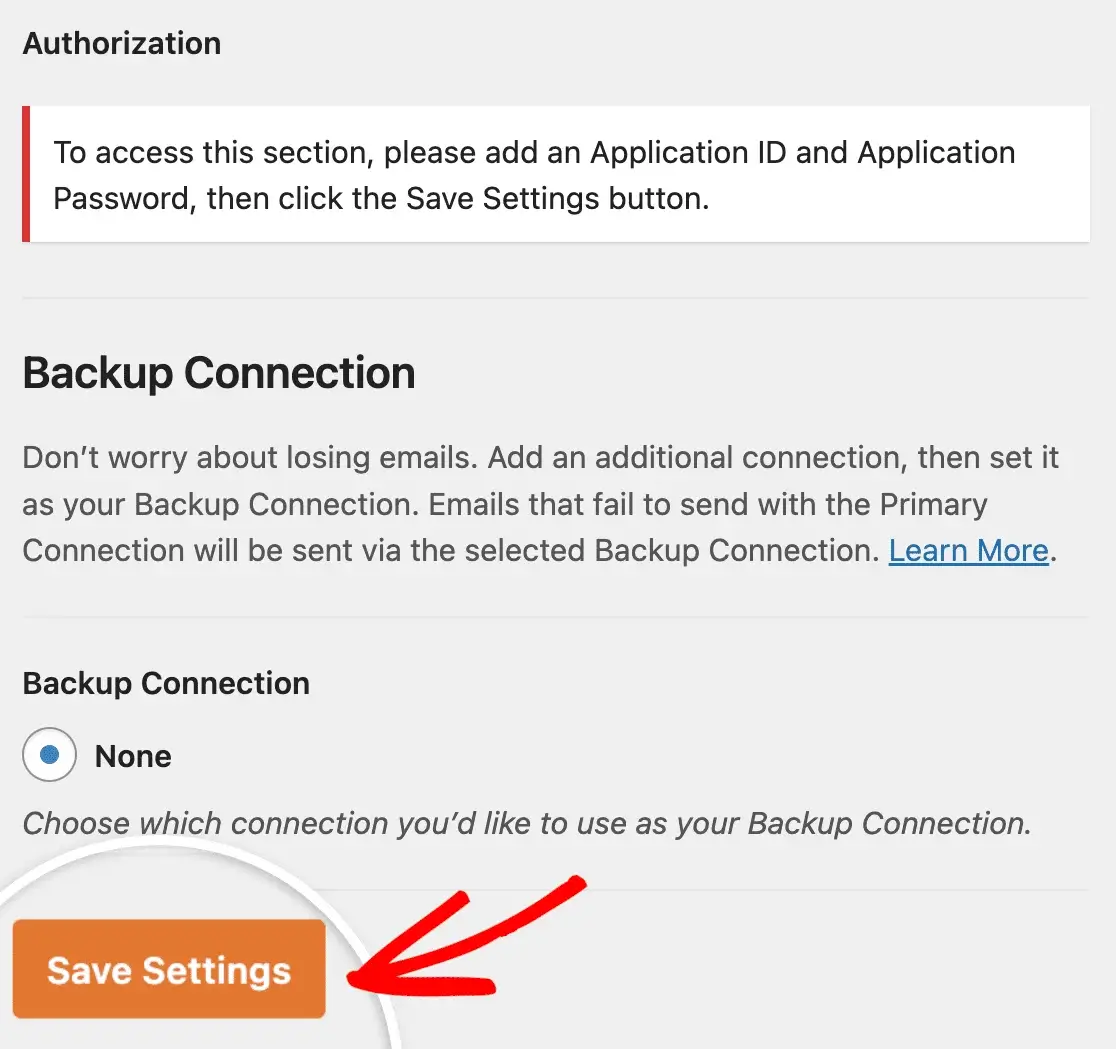
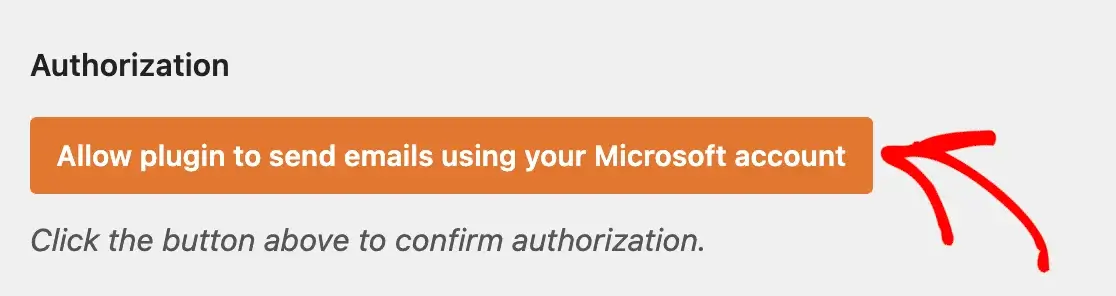
Select Save Settings. In Authorization, select Allow plugin to send emails using your Microsoft account. Sign in as the sending mailbox and approve the requested access.
10. Confirm success
Verify that WP Mail SMTP reports a successful connection and shows the correct authorized email address.
11. Notify ProFusion immediately
Use the completion notice on page 4 so ProFusion can restore the protected administrator-login URL and complete testing.
Client-secret ownership
The client's IT provider is responsible for securely recording the registered application, secret owner, and expiration date. Before the secret expires, create a replacement, update WP Mail SMTP, reauthorize the connection if required, and test delivery.
Common problems
Symptom | Check |
|---|---|
Invalid state or authorization fails | Confirm the Microsoft login matches From Email; restart from the same browser session; verify the standard WordPress admin route is temporarily available. |
Admin approval required | A Microsoft Global Administrator or an authorized consent-workflow reviewer must approve the application. |
ErrorSendAsDenied | From Email differs from the authorized mailbox, or the authorizing account lacks Send As permission for the selected mailbox. |
Connection stops after a password/MFA change | Remove or reconnect the OAuth connection in WP Mail SMTP and authorize it again. |
Manual connection fails | Recheck the Web redirect URL, supported account type, Application ID, and client-secret Value. Do not use the secret's ID. |
Completion and handoff
The setup is not complete until ProFusion is notified.
Microsoft authorization temporarily requires the standard WordPress administrator route. ProFusion must restore the customized administrator-login URL after connection and testing.
IT provider completion checklist
Send this completion notice to ProFusion
Subject: Microsoft 365 / WP Mail SMTP Connection Complete — [Website Domain]
Website: [website domain]
Authorized From Email: [email address]
Connection Method: [One-Click Setup / Manual Application ID]
Completed By: [name and company]
Date/Time: [date and time]
The Microsoft 365 connection is authorized and WP Mail SMTP shows a successful connection. Please restore the protected WordPress administrator-login URL and complete the final email-delivery test.
What ProFusion will do next
Official setup references
Manual Application ID setup:
One-Click Setup:
Microsoft and WP Mail SMTP interfaces may change. If a label differs from this guide, follow the current official reference linked above and contact ProFusion before changing unrelated website settings.
Reconnection & Troubleshooting Guide
Reconnect WordPress to Microsoft 365 Email
For a WP Mail SMTP connection that worked previously but has stopped sending or requires renewed authorization.
Start with the least disruptive repair
Confirm the failure, record the error, and use Reconnect when available. Remove the OAuth connection or replace application credentials only when the simpler refresh fails or the evidence shows that credentials, consent, or a client secret have changed.
What can break a previously working connection?
About IP changes
A server IP change alone normally does not invalidate Microsoft OAuth. However, a migration that accompanies the IP change can affect the site URL, redirect URL, SSL, cached settings, outbound access, or stored connection data. Troubleshoot those related changes before treating the IP address itself as the cause.
Before the IT begins
Phase 1 — Diagnose before reconnecting
1. Confirm that email is actually failing
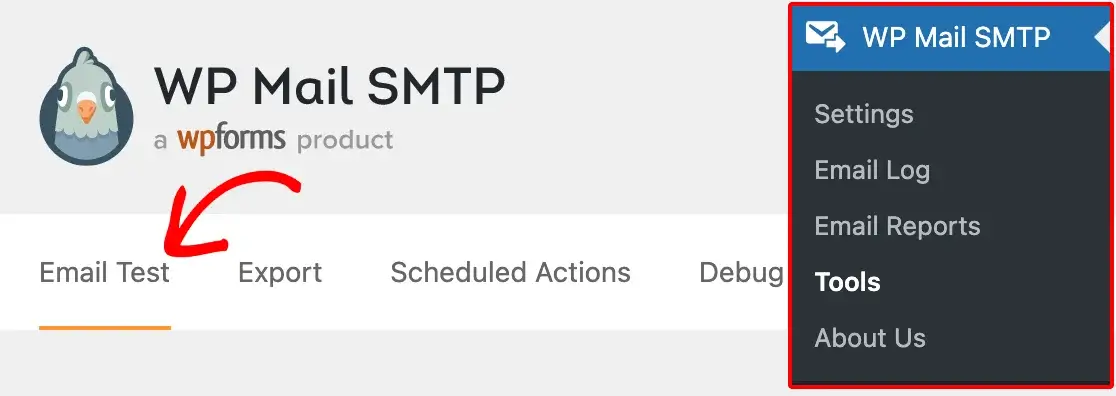
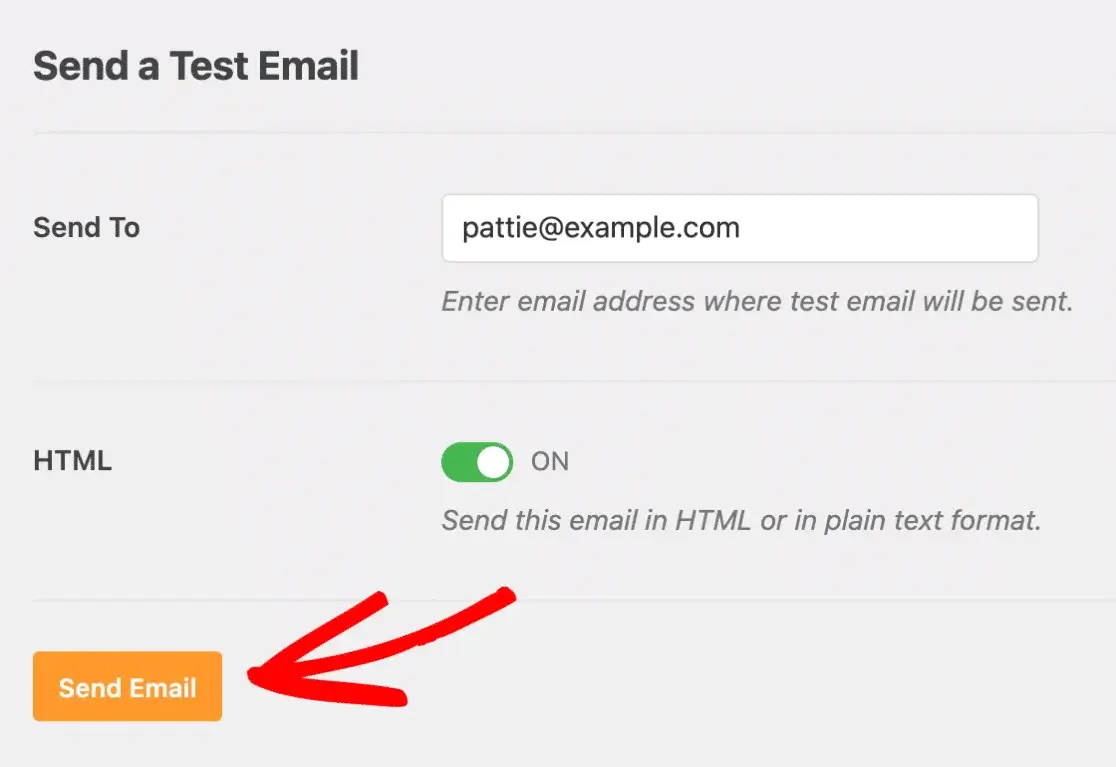
In WordPress, go to WP Mail SMTP → Tools → Email Test. Send to an external inbox and save the exact error shown.
2. Check Email Log and recent failures
If logging is enabled, review the timestamp, mailer, From Email, and error details. Confirm whether all site email fails or only one form/plugin notification.
3. Verify the plugin and license
Confirm WP Mail SMTP Pro is active, its license is verified, and the plugin and WordPress core are current. Review any warnings shown on WP Mail SMTP → Settings.
4. Confirm the mailer and sender
The mailer should remain 365 / Outlook. Verify From Email and Force From Email. The authorized address must match From Email unless Microsoft Send As permission is configured.
5. Check the mailbox
Confirm the Microsoft 365 account is enabled, licensed for Exchange Online, able to send normally, and not blocked by a password reset, sign-in risk, or tenant policy.
6. Review recent changes
Ask whether the mailbox password, MFA, permissions, tenant security policy, website domain/URL, SSL, hosting server, DNS, administrator-login route, caching, or firewall changed shortly before the failure.
7. Identify the current setup method
One-Click Setup shows its toggle and OAuth authorization controls. A manual setup has an Application ID and Application Password/client secret.
Choose the repair path
What you see | Likely issue | Use |
|---|---|---|
Reconnect button; settings otherwise intact | Expired or stale OAuth session | Path A |
Password/MFA or consent changed | Authorization invalidated | Path A, then B if needed |
Manual app secret expired/deleted | Invalid client secret | Path C |
Redirect or site URL changed | Callback mismatch | Path D |
SendAsDenied | Sender/permission mismatch | Path E |
Phase 2 — Reconnect using the appropriate path
Path A — Refresh the existing authorization
1. Open the current connection
Go to WP Mail SMTP → Settings → General and scroll to 365 / Outlook → Authorization.
2. Select Reconnect when available
Sign in with the exact Microsoft mailbox used for From Email, complete MFA, and accept the requested permissions.
3. Confirm the return to WordPress
Verify that WP Mail SMTP reports a successful connection and displays the correct authorized email address.
4. Test
Send a WP Mail SMTP test email. If it succeeds, continue to final validation. If it fails, use the error to select Path B–E.
Path B — Remove and recreate the OAuth connection
Use only when
Reconnect is unavailable or unsuccessful, the password/MFA/consent changed, or the stored OAuth authorization is clearly invalid.
1. Record the current setup
Capture the mailer, From Email, setup method, and authorized account. Do not remove a manual Application ID or overwrite its secret unless Path C applies.
2. Remove the connection
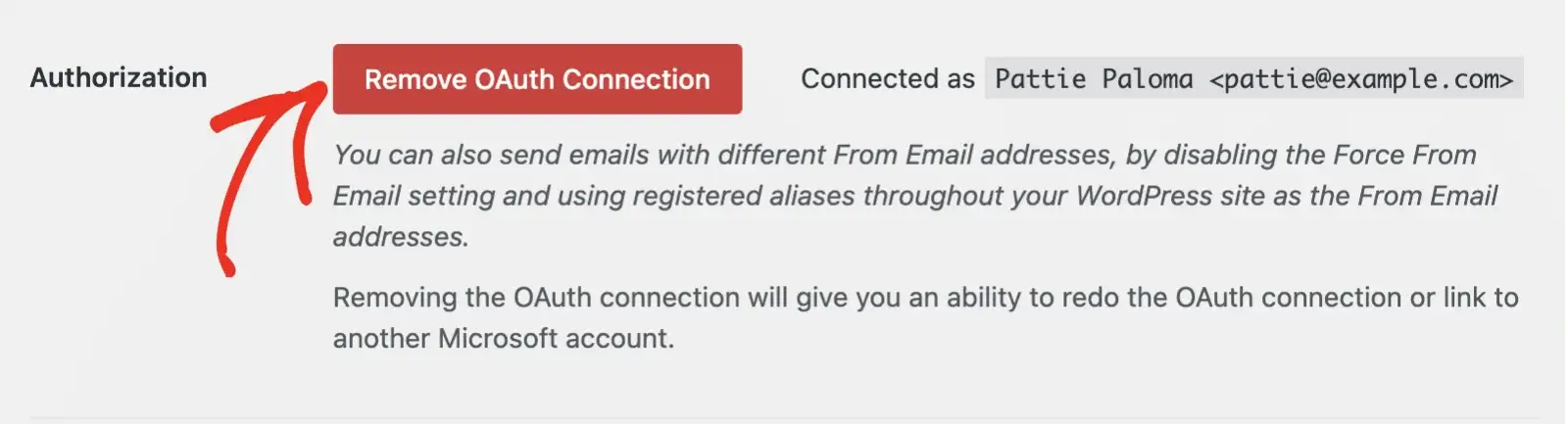
In Authorization, select Remove OAuth Connection or Remove Connection. Confirm only the OAuth connection is being removed.
3. Authorize again
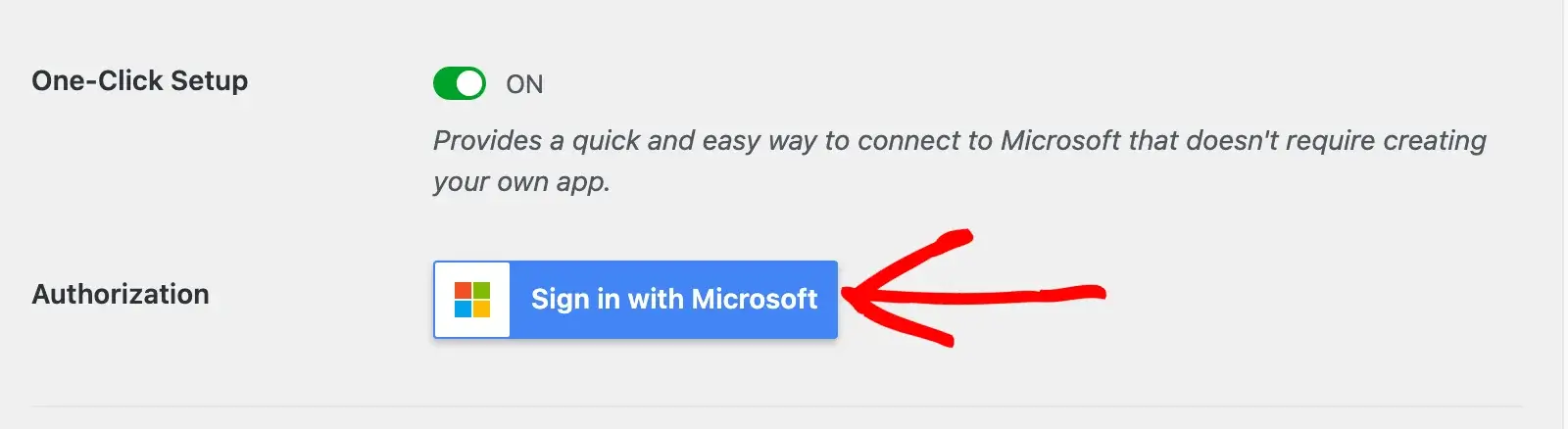
For One-Click Setup, select Sign in with Microsoft. For manual setup, select Allow plugin to send emails using your Microsoft account.
4. Approve and verify
Sign in as the correct mailbox, complete tenant admin consent if required, and verify the successful return to WP Mail SMTP.
5. Test
Send a test email and confirm delivery in the destination inbox—not only a WordPress success message.
Path C — Replace an expired manual client secret
1. Open the existing Microsoft app
In Microsoft Entra/Azure, go to App registrations and open the application used for this website. Do not create a new app unless the original cannot be recovered or policy requires replacement.
2. Create a new client secret
Open Certificates & secrets → New client secret. Select an expiration allowed by the organization.
3. Copy the Value
Copy the secret Value immediately—not the Secret ID—and store the expiration date securely.
4. Update WP Mail SMTP
Replace Application Password with the new secret Value, save settings, then reauthorize the Microsoft account if prompted.
Phase 2 — Additional repair paths
Path D — Correct a redirect URL or site migration issue
1. Confirm the current Redirect URL
Copy the exact Redirect URL displayed in WP Mail SMTP. It must use the current HTTPS site/admin address generated by the plugin.
2. Compare Microsoft app settings
For a manual setup, open the app's Authentication settings and confirm the Web redirect URL exactly matches—scheme, host, path, and trailing characters.
3. Check the migrated site
Confirm WordPress Address and Site Address are correct, SSL is valid, redirects do not loop, caches are cleared, and the temporary standard administrator route is reachable.
4. Reauthorize and test
Save corrected settings, authorize Microsoft again, and test delivery. Do not add broad redirect exceptions or disable security controls beyond the temporary access arranged by ProFusion.
Path E — Resolve From Email or Send As errors
1. Compare addresses
Confirm WP Mail SMTP From Email matches the authorized Microsoft account.
2. If using a shared or different mailbox
In Microsoft 365, confirm the authorizing user still has Send As permission for that mailbox or group. Allow time for Microsoft permission changes to propagate.
3. Retest
Keep Force From Email enabled when appropriate, reauthorize if permissions changed, then test again.
Error-directed checks
Message or symptom | Recommended check |
|---|---|
Invalid state | Use the same browser session; confirm From Email/account match and callback/admin route availability. |
ErrorSendAsDenied | Match From Email to the authorized mailbox or restore Microsoft Send As permission. |
ErrorSendAsDenied | Have a Microsoft Global Administrator or consent-workflow reviewer approve access. |
Invalid/expired client secret | Create a new secret Value in the existing app and update Application Password. |
No mail but test reports success | Check recipient spam/quarantine, Microsoft message trace, and the originating form/plugin notification settings. |
Failure began after migration | Verify URL/HTTPS/redirect URL, cache, stored plugin settings, DNS, firewall, and outbound connectivity—not only the IP address. |
Phase 3 — Validate, secure, and hand off
Required validation

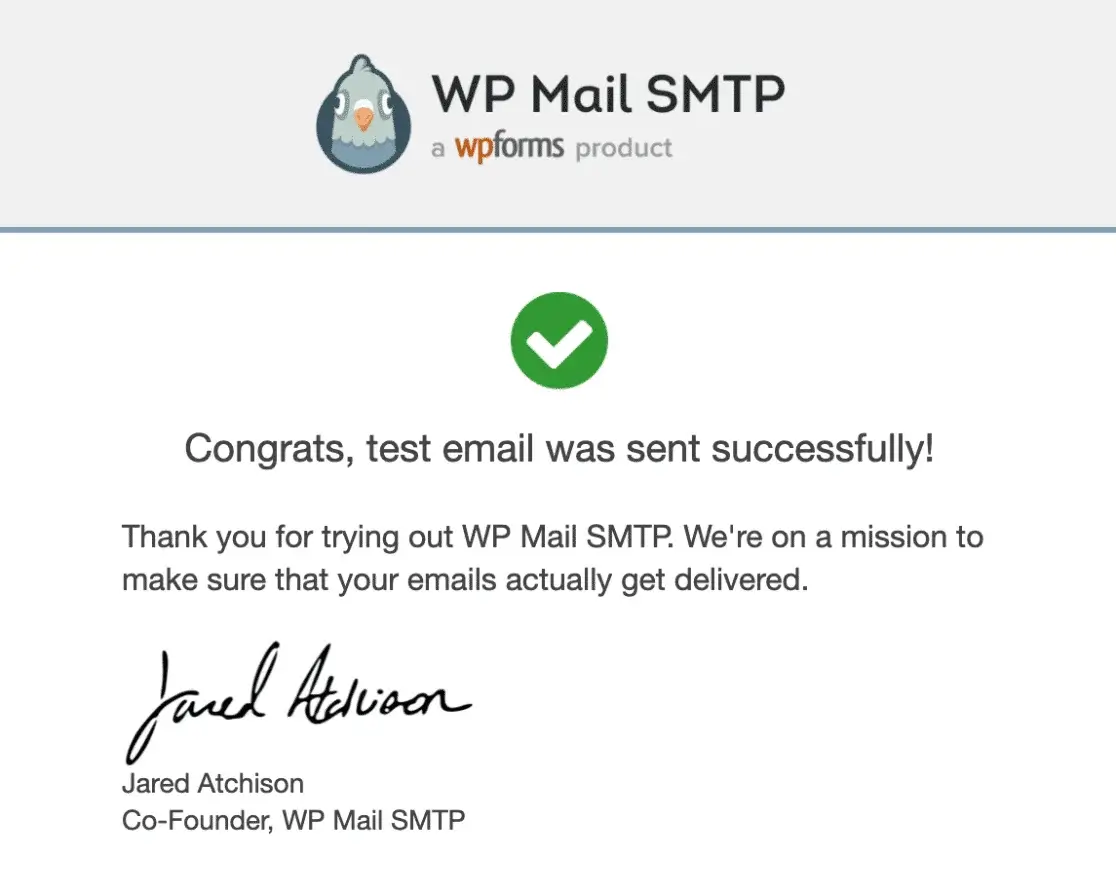
The reconnection is not complete until ProFusion is notified.
ProFusion must restore the customized WordPress administrator-login URL and confirm that security protections are back in place.
Send this completion notice to ProFusion
Subject: Microsoft 365 / WP Mail SMTP Reconnected — [Website Domain]
Website: [website domain]
Authorized From Email: [email address]
Connection Type: [One-Click Setup / Manual Application ID]
Repair Used: [Path A, B, C, D, or E]
Completed By: [name and company]
Date/Time: [date and time]
Original Error: [brief error—do not include secrets]
Validation: [test email received / website notification received]
The Microsoft 365 connection is working again. Please restore the protected WordPress administrator-login URL and complete your final verification.
What ProFusion will do next
Official setup references
Microsoft 365 / Outlook mailer:
One-Click Setup:
General WP Mail SMTP troubleshooting: